Schedule button missing on Facebook? How to fix it and schedule free
Last checked 1 November 2026
Yes, you can schedule posts on Facebook for free in Meta Business Suite, from 20 minutes to 29 days ahead. If the option is missing, you're usually on a personal profile, you don't have permission on the Page, or you've picked a time outside that window.
Why can't I schedule a post on Facebook?
| What's wrong | How to fix it |
|---|---|
| You're posting from a personal profile | Switch to your Page, or turn on professional mode |
| You don't have the right access | You need full control or content permission on the Page |
| The time is too soon or too far off | Pick a time at least 20 minutes away and within 29 days |
| You're not in Business Suite | Open Meta Business Suite and use Create post |
| Business Suite won't open for your Page | Business Suite needs a business portfolio, so set one up |
How to schedule a Facebook post on a computer
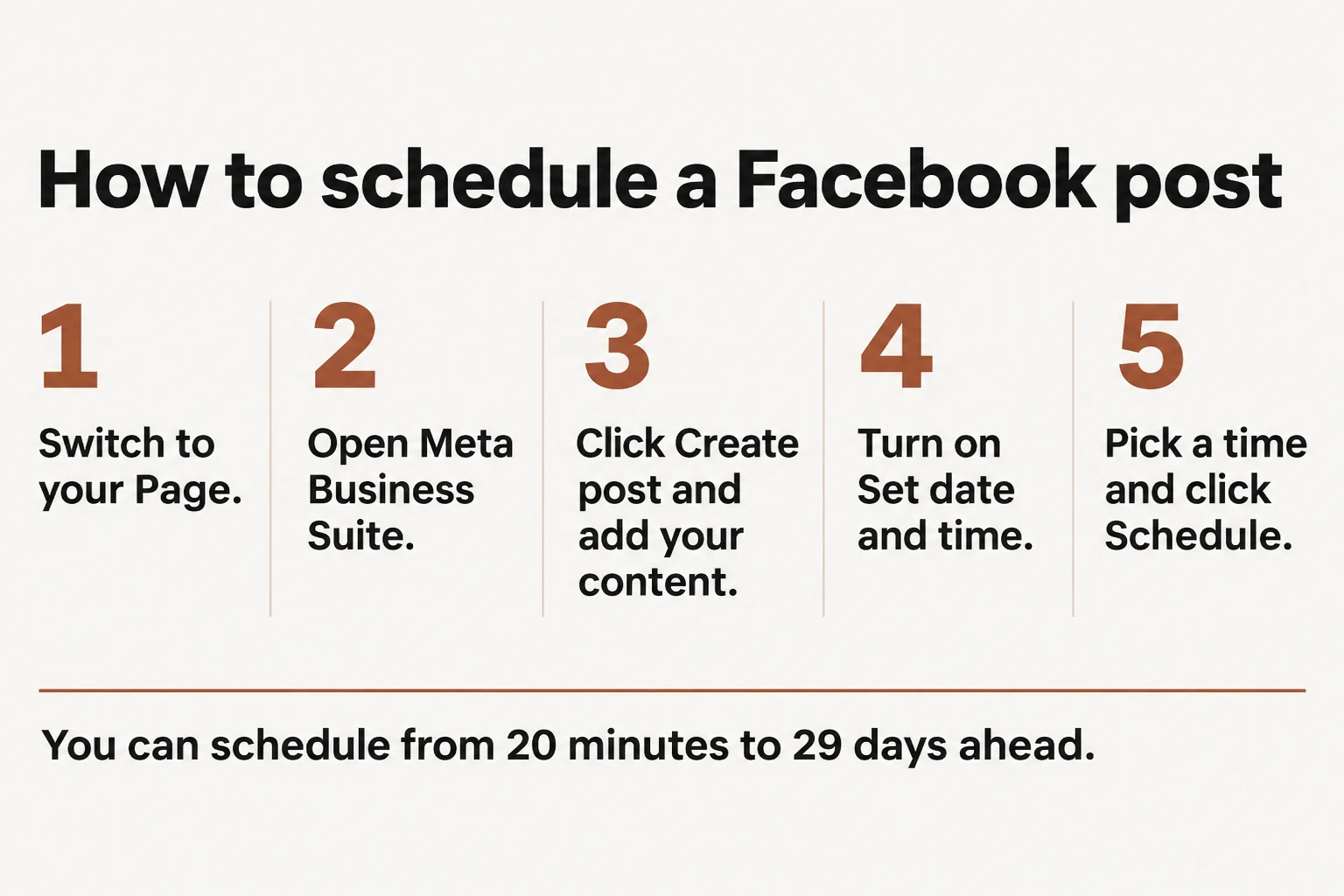
- Switch to your Page on Facebook.
- Click Meta Business Suite in the left menu.
- Click Create post and add your text, photo or video.
- Next to Scheduling options, turn on Set date and time.
- Pick the date and time, then click Schedule.
Times follow your current time zone, and Active times shows Meta's suggested times.
How to schedule a Facebook post on your phone
- Open the Meta Business Suite app and tap Content.
- Choose Posts, Reels or Stories, then tap Create.
- Add your media and text, then tap Next.
- Tap Schedule for later, pick a time and tap Schedule.
Who can schedule posts on Facebook?
| Where you post | Can you schedule? |
|---|---|
| A Facebook Page | Yes, with full control or content permission |
| A profile in professional mode | Yes, Meta says these can schedule |
| A personal profile | Meta's help pages don't say it can, so turn on professional mode or use a Page |
How far ahead can you schedule on Facebook?
In Business Suite, from 20 minutes to 29 days. You may see other numbers online. The 75 days quoted on some sites is what Meta allows apps through its API for Page posts, not what you get in Business Suite.
Meta's paid Meta One plans (Advanced, Expert and Max) add scheduling up to a year ahead, on mobile only. Meta describes Meta One as still in limited testing, and availability varies.
What you can schedule
- Posts, up to 29 days ahead.
- Reels. On a computer, use Create reel. On a phone, use Schedule for later.
- Stories, with up to 10 photos or videos.
Before you upload a clip, check the Facebook Reel size. Short of ideas? The free bulk Facebook status generator has original posts in 34 topics.
How to edit a scheduled post
The Planner in Business Suite shows your scheduled posts, Stories and Reels on a weekly or monthly calendar. You can edit a post's text, media, link or location there before it goes out.
Do scheduled link posts count toward Facebook's link limit?
Meta doesn't say, so plan as if they do. It limits most Pages to 2 posts or comments with links a month. Our guide on how to add a link to a Facebook post has the full table and what doesn't count.
Can Business Suite post to several Pages or add a first comment?
Not in our test on 1 November 2026, on an account with five Pages. The Post to menu offered the open Page, its Instagram and Facebook Groups, but no second Page. The post screen had no first comment option either, scheduled or not.
Those Pages weren't in a business portfolio, so a portfolio may show more. Meta's help pages don't describe either feature, so check your own account before you plan around them.
How to schedule Facebook posts to several Pages
Meta's tool is free and fine for one Page. Trend Scheduler is for people who run several Pages, and it starts at US$17 a month. You can compare its price with Hootsuite, or read what works at 3, 10 and 40 Pages. Here's what scheduling a post looks like, using sample Pages.
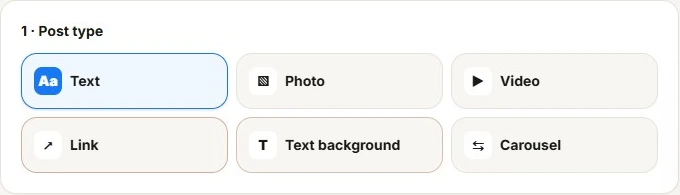
Step 1. Open Create and choose your post type: text, photo, video, link, text background or carousel.
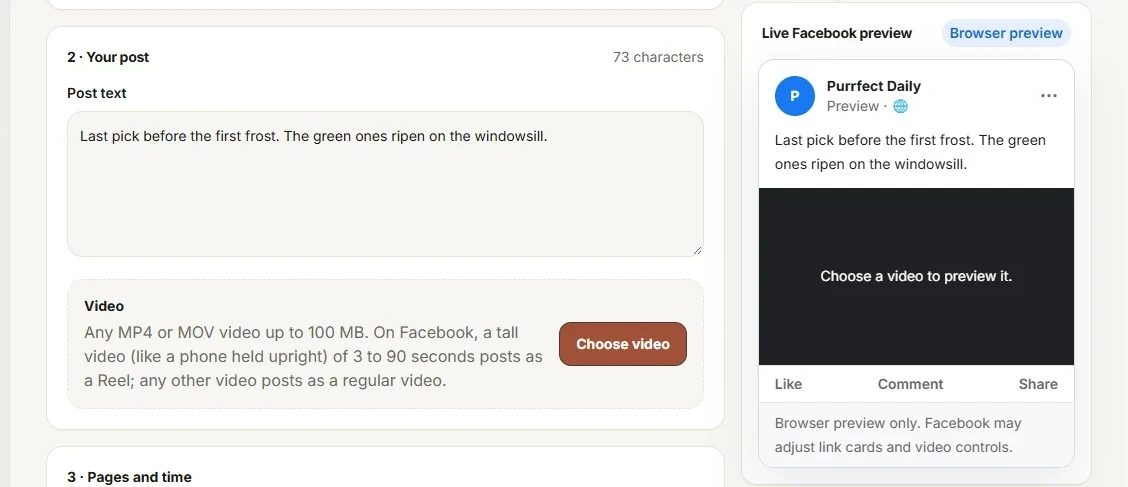
Step 2. Write your post. The preview on the right shows how it will look on Facebook.
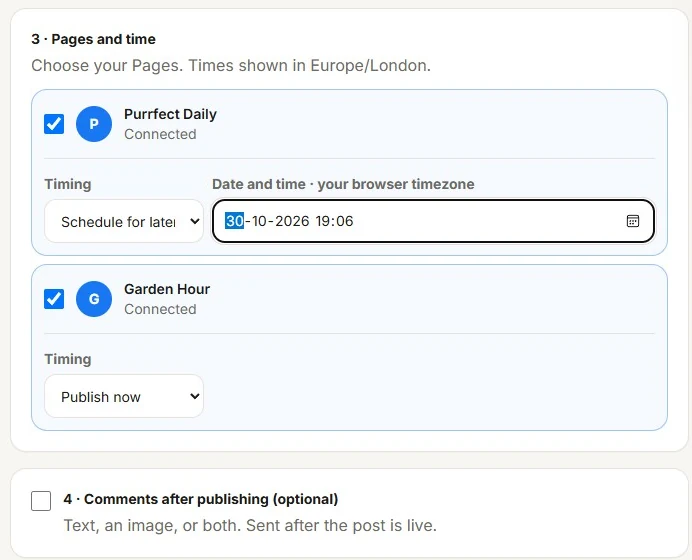
Step 3. Tick your Pages and set the time for each one. One Page can go now and another later.
Step 4. Add a first comment if you want one. It goes out after your post is live.
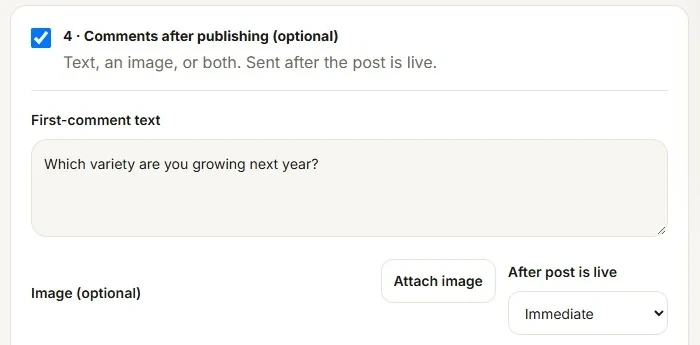
Step 5. Press Schedule post, or Publish and schedule if one Page is going out now. The post goes onto your calendar, and your browser doesn't need to stay open.
Common questions
Is Meta Business Suite free?
Yes. Meta says Business Suite is free on a computer and in the app.
Do I need Business Suite to schedule?
It's Meta's own way to schedule, and it's the one Meta's help pages describe for Pages. Other tools can schedule to your Page too.
Does scheduling hurt reach?
Meta's scheduling help pages don't mention any effect on reach.
Sources
- Meta: schedule a post for your Page
- Meta: schedule posts in the Business Suite app
- Meta: schedule Reels
- Meta: schedule Stories
- Meta: the Planner
- Meta: scheduling with Meta One
Related guides and tools
- How to manage multiple Facebook Pages
How to manage multiple Facebook Pages at 3, 10 and 40 Pages: what to use, what it costs, a weekly routine and how to avoid posting to the wrong Page.
- How to add a link to a Facebook post
How to add a link to a Facebook post, plus Meta's limit of 2 link posts or comments a month, what doesn't count and how to fix a missing preview.
- Hootsuite alternative for Facebook Pages
What Hootsuite, Metricool, Publer, Buffer and AutomatePage really cost for 5, 15 and 40 Facebook Pages, why the bill jumps, and when to stay where you are.
- Bulk Facebook status generator
Free bulk Facebook status generator: 340 original posts and captions in 34 topics. Pick several, copy them or download a CSV to schedule. No login.